
Sending Your Transcript to Yourself Physically
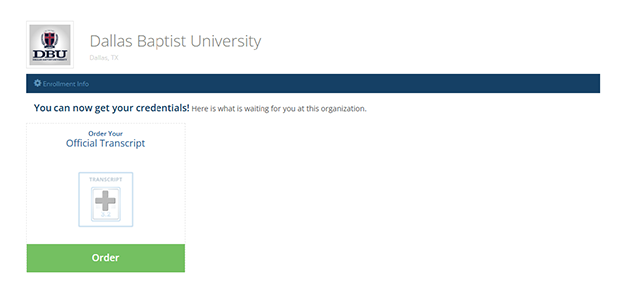
Once your account has been created, you will select the green “Order” button.
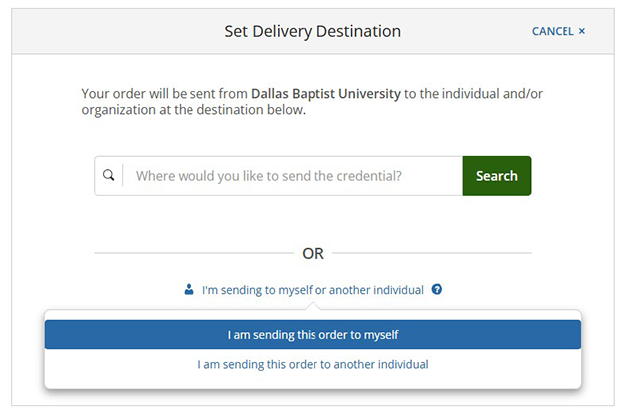
On this page, you will select the option below the search box that says, “I am sending this order to myself.”
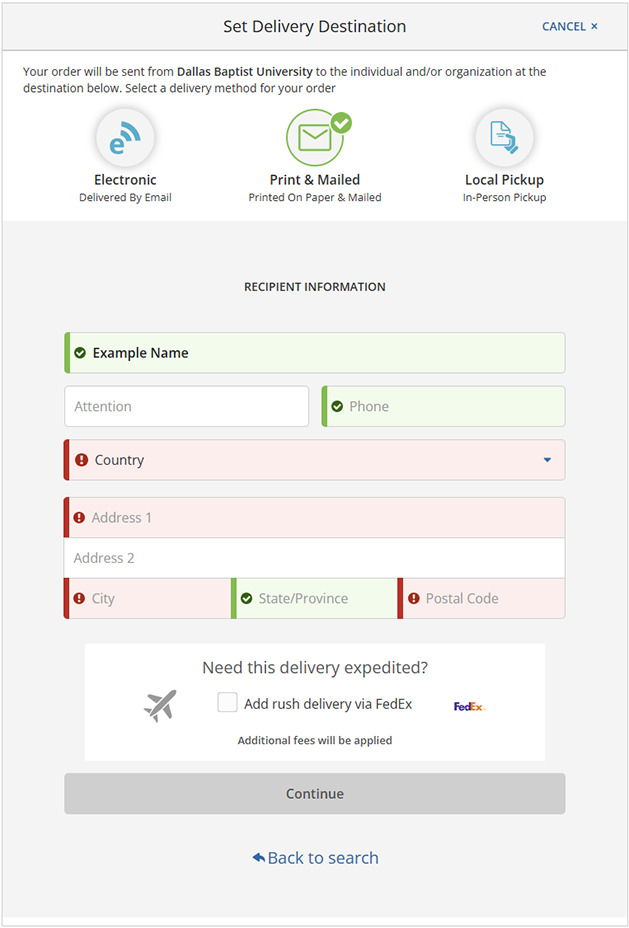
Next, you will change the delivery method from “Electronic” (the default selection) to “Print & Mailed.” The fields will automatically populate with the address on your Parchment account. However, you may edit any field you wish.
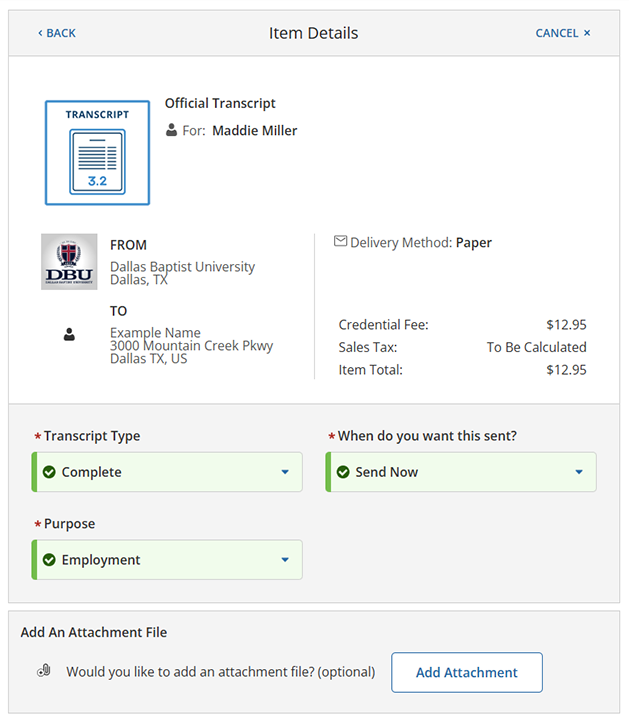
You will be taken to the following page. Your Transcript Type indicates the type of degree you pursued at Dallas Baptist University. If you attended DBU for multiple academic levels, you may choose to have your complete academic history sent with the “Complete” option. This is the default selection. If you wish to have any academic level(s) omitted, you may instead choose the specific ones you want to be included in your transcript.
You will be asked when you want your order to be processed next. The default option is to have your transcript prepared now. However, no in-progress courses are listed on Dallas Baptist University transcripts. If you would like your transcript order to be held until your semester grades are posted, you may select “Hold for Grades.” If you are in your graduating term and do not want your transcript to be sent until your grades and degree are posted, please select “Hold for Degree.” If you do not select one of the hold options, your transcript order will be processed within 1-2 business days.
The order form asks for the purpose of your order. If you do not see an applicable answer, please select “Other.” Your selection has no impact on the contents of your transcript.
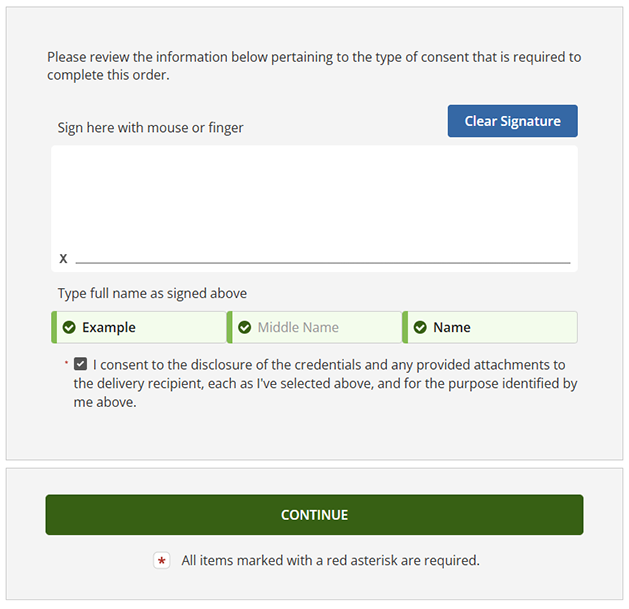
At the bottom of the same page, you will be asked to provide your signature, type your name, and check the box consenting for your transcript to be sent to the destination indicated at the top of the page.
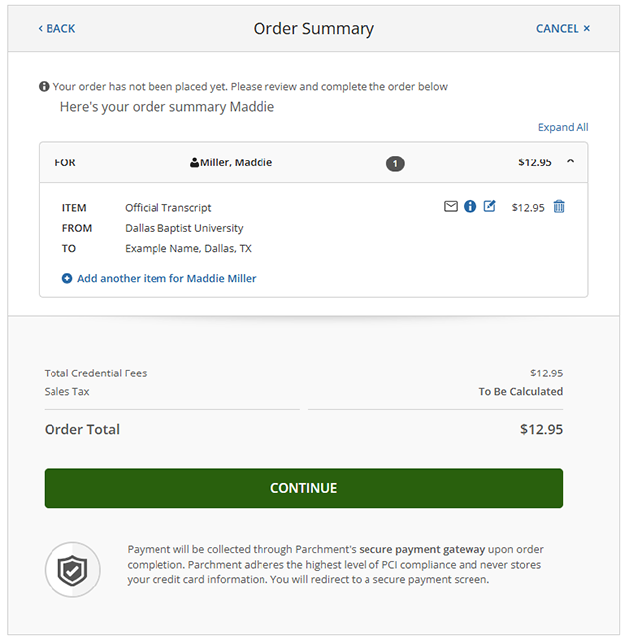
The next page provides a summary of your order. If you would like to make any changes, you may click the edit button next to the cost.
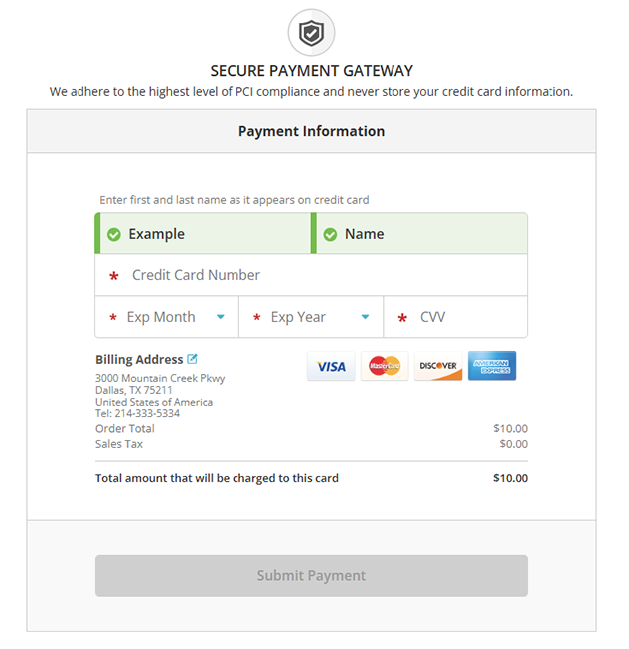
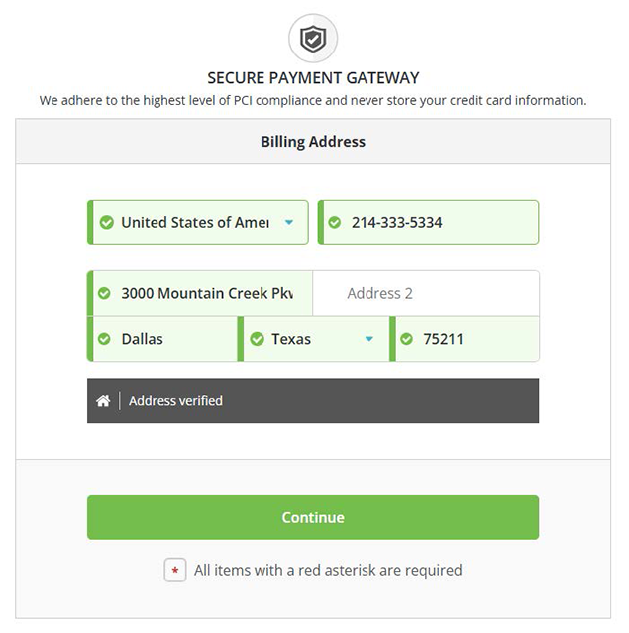
The final pages are where you will provide billing information.
After you select “Submit Payment,” your order will be placed. You should receive a confirmation email shortly after from Parchment.